Skate Tree Avatar & Settings
Use the Skate Tree Avatar & Settings menu to make two separate choices: how your skater looks and how the game presents the course. Start in the Skater customization screen for appearance, then open Settings to adjust the camera and graphics. This keeps visual style separate from board skins and helps you choose a view that makes ramps, rails, and landings easier to read.
Customize Your Skater
Open the skater customization flow and choose an appearance before returning to free skating. The supplied evidence shows these options:
| Option | What it changes | Evidence boundary |
|---|---|---|
| Roblox Avatar | Uses your Roblox avatar as the skater appearance | The option is shown, but price and unlock rules are not documented |
| Dembones | Selects a preset character | Confirmed as a selectable character |
| Isaac | Selects a preset character | Confirmed as a selectable character |
| Meat Man | Selects a preset character | Confirmed as a selectable character |
| Hairstyles | Changes the skater's hair | Several choices are shown; the full count is not documented |
| Shirts | Changes the skater's clothing | Shirts and other clothing choices are shown; the full catalog is not documented |
| Shoes | Changes footwear | Shoe choices include Vans examples; the complete catalog is not documented |
| Accessories | Adds visual items such as a diamond chain | No gameplay-stat effect is established |
There is no supported evidence that these appearance choices change speed, jump height, score, balance, or any other skating attribute. Choose them for presentation unless an in-game panel explicitly says otherwise.
Set Camera and Graphics
Open Settings after choosing your skater and check the three settings that matter most during a run:
- Camera Mode: The available video evidence shows a Skate Tree camera and a normal Roblox camera option. Try each in an open area and keep the one that makes your approach and landing easiest to judge.
- Camera Angle: Adjust the view so you can see the next ramp, rail, or landing area without losing the board. A wider or differently positioned view can help with route reading, while a closer view may make the skater easier to follow; the exact available values are not documented.
- Graphics: Raise or lower the graphics setting according to your device. Higher quality may improve presentation, while a lower setting can be the safer choice if frame pacing or input response suffers. The available evidence confirms a Graphics option but does not list its tiers or separate effects.
Camera settings are practical controls, not cosmetic-only toggles. The controller guide also describes the right stick as a camera control during skating, so check the current control overlay or pause/settings menu if your camera input differs from an external guide.
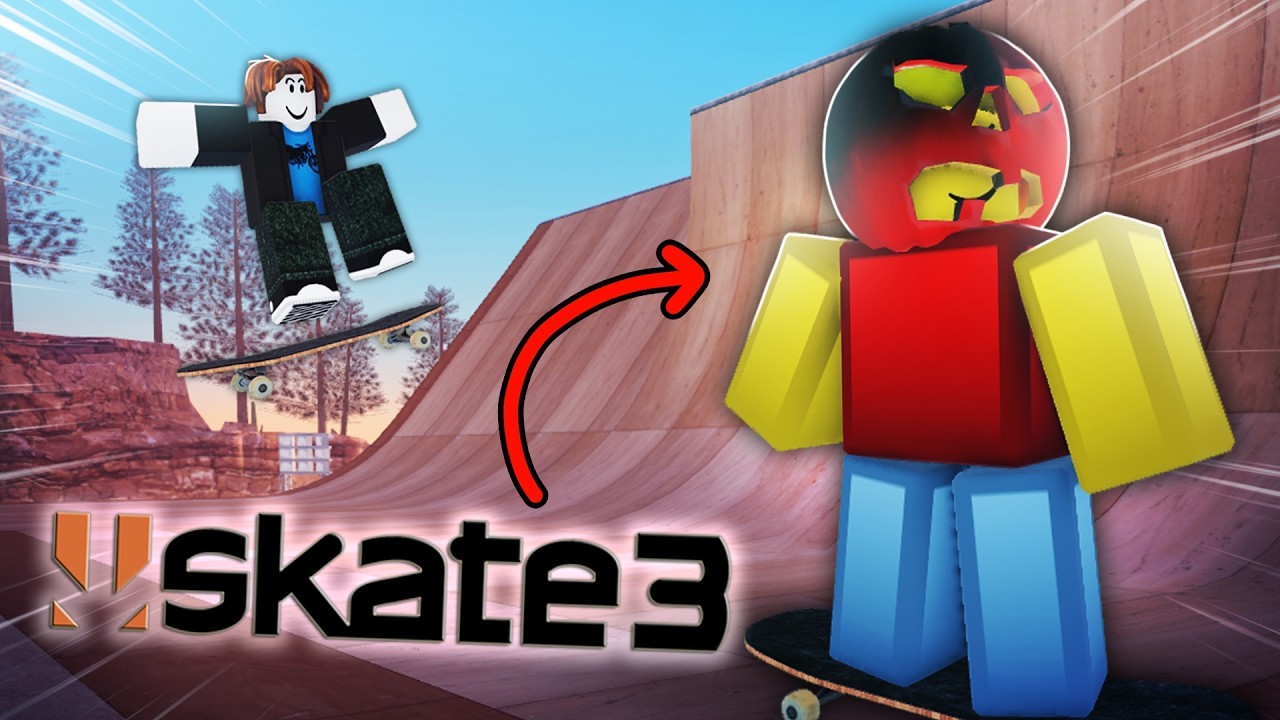
Adjust camera settings and customize your Skate Tree skater
This moment shows the normal Roblox camera, camera angle, and Graphics settings before walking through the Skater customization options described in this guide.
Keep Avatar and Board Cosmetics Separate
Your skater and your skateboard are customized through different systems. For board purchases and workshop choices, continue with the Coins and Boards guide:
| You want to change | Use | Examples |
|---|---|---|
| Character appearance | Skater customization | Roblox Avatar, Dembones, hair, shirts, shoes, accessories |
| Board appearance | Skateboard Shop | Skins, designs, colors, and decals |
Changing a shirt or accessory does not document a board change, and buying a board skin does not document a character change. If the goal is to alter what other players see in a session, check the correct menu rather than searching the other customization system.
Choose a Setup for Your Device and Route
Use this short decision rule when you are unsure what to change:
- Learning a new ramp or rail: Pick the camera mode and angle that leave the next surface visible on approach; practice with the current graphics setting before changing multiple options.
- Missing landings because the view is unclear: Change Camera Angle first, then test the same line again. Keep the route and trick consistent so you can tell whether the view helped.
- Seeing delayed or uneven input: Lower Graphics and retest in the same area. The evidence does not establish a guaranteed performance preset, so judge the result on your device.
- Joining a multiplayer session: Choose your appearance in
Skater, then verify the camera separately. Other players may use Roblox avatars or different presets, but that does not imply an advantage. - Checking controls after an update or device change: Use the in-game control overlay or pause/settings menu. Bindings and prompts may differ by keyboard, controller, or game version.
Troubleshoot Customization and Settings
I cannot find a complete hairstyle, shirt, or shoe list. The available evidence shows categories and examples, not a complete catalog. Scroll the current in-game panel rather than treating an external list as exhaustive.
The Roblox Avatar option has no documented price or requirement. Do not assume it is free, paid with Robux, or locked. Check the option's current in-game state.
My camera feels wrong after switching modes. Test Camera Mode and Camera Angle separately in an open area, then use the control overlay to confirm the camera input. The exact option names and values are not fully documented in the supplied sources.
Graphics changes do not solve performance issues. Lower the setting and retest the same route, but do not infer a specific shadow, effects, or frame-rate toggle from the single Graphics label; those details are not recorded here.
I meant to change my board, not my character. Leave the Skater screen and use Skateboard Shop for skins, designs, colors, or decals.
After the setup works, return to a familiar spot and repeat one short line. Keep the appearance you like, then make only one camera or graphics change at a time so you can identify which setting improved the run.